Parental Controls & Privacy Settings That Actually Work : Your Step-by-Step Guide for Apple, Google, and Meta
- Savvi
- Sep 30, 2025
- 5 min read
As parents, we want to protect our children while giving them the freedom to explore and learn. The digital world presents unique challenges, but with the right parental controls and privacy settings, you can create a safer online environment for your family. Here's your comprehensive, step-by-step guide to setting up effective protections across Apple, Google, and Meta platforms.
Apple: Your Most Comprehensive Protection Platform
Apple's parental control system offers the most robust protection available today, covering iPhones, iPads, and Macs with detailed restrictions for users under 18. The company has invested heavily in making these tools both powerful and user-friendly.
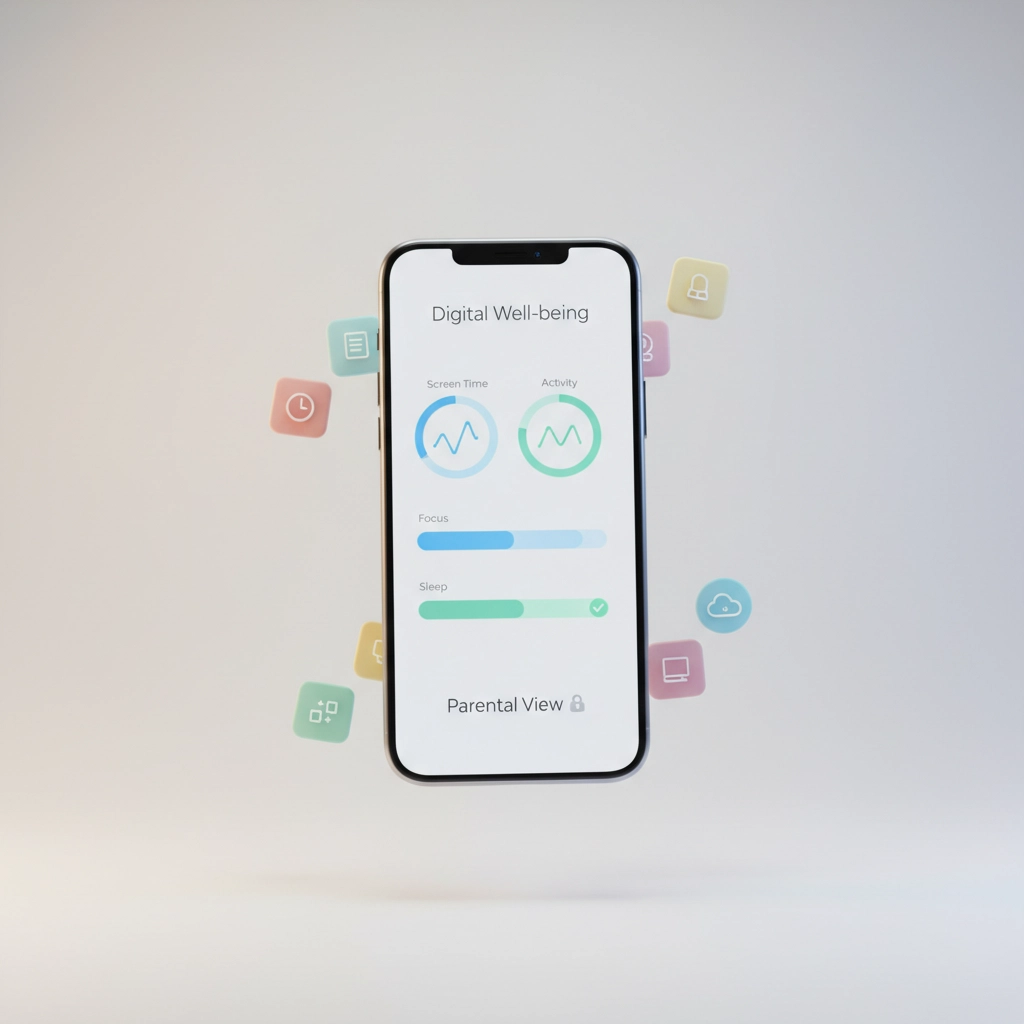
Setting Up Screen Time Controls
Start by opening Settings on your child's device, then tap Screen Time. If this is your first time setting it up, tap Turn On Screen Time and select This is My Child's Device.
Here's what you can control:
App Limits: Set daily time limits for specific apps or entire categories like social media or games. When time runs out, the app becomes unavailable until the next day or until you grant more time.
Downtime: Create scheduled periods where only essential apps (like Phone and Messages) remain accessible. This is perfect for bedtime or homework hours.
Always Allowed: Designate which apps remain available even during downtime: typically Phone, Messages, and any educational apps you approve.
Content and Privacy Restrictions
Under Screen Time settings, enable Content and Privacy Restrictions. This gives you control over:
App Store Purchases: Require password approval for installing apps, making purchases, or deleting apps. This prevents surprise charges and inappropriate downloads.
Content Ratings: Set age-appropriate limits for movies, TV shows, books, and apps. Choose ratings that match your family's values.
Web Content: Select "Limit Adult Websites" for automatic filtering, or choose "Allowed Websites Only" to create a completely controlled browsing experience.
Location Services: Control whether your child can share their location and which apps can access it.
Communication Safety Features
Apple's Communication Safety analyzes messages and photos for potentially harmful content. When enabled, it provides age-appropriate guidance to help children make safer choices about what they view or send.
To enable this, go to Screen Time > Communication Safety and toggle it on. This feature works across Messages, AirDrop, Contact Posters, FaceTime messages, and the Phone app.
Family Sharing Setup
Create a Family Sharing group to manage multiple devices from your own iPhone. Go to Settings > [Your Name] > Family Sharing and invite family members. This allows you to:
Approve or deny app downloads remotely
Share subscriptions and purchases
Monitor screen time across all family devices
Set up location sharing for safety
Google: Evolving Protection Through Family Link
Google's approach centers on Family Link, their dedicated parental control system that works across Android devices and Google services.
Getting Started with Family Link
Download the Family Link app on your device and your child's device. Create a Google account for your child if they don't have one, or link their existing account to your family group.
Device Management: Set daily screen time limits and bedtime schedules. You can also remotely lock your child's device when it's time for dinner, homework, or sleep.
App Approval: Every app your child wants to download requires your approval. You'll receive a notification and can approve or deny the request instantly.
Location Tracking: See your child's location in real-time and receive notifications when they arrive at or leave specific places like school or home.

Content Filtering
Google's content filtering works across Chrome, Google Search, and YouTube:
Safe Search: Automatically enabled for child accounts, filtering explicit content from search results.
YouTube Restrictions: Choose between YouTube Kids for younger children or regular YouTube with restricted mode for teens.
Chrome Filtering: Block inappropriate websites and manage which sites your child can visit.
Activity Reports
Family Link provides detailed reports showing:
Which apps your child uses most
How much time they spend on different activities
Websites they've visited
Location history
Review these weekly to understand your child's digital habits and adjust restrictions as needed.
Meta: Navigating Facebook and Instagram Safety
Meta's platforms require a different approach since children can access them through web browsers, bypassing app store controls entirely.
Instagram Safety Settings
For teens using Instagram, help them configure these privacy settings:
Account Privacy: Switch to a private account so only approved followers can see posts and stories.
Comments: Filter comments containing potentially offensive words or phrases.
Message Controls: Restrict who can send direct messages, limiting contact to people they follow.
Activity Status: Turn off "Last Seen" to prevent others from knowing when they're online.
Facebook Privacy Controls
If your teen uses Facebook, focus on these essential settings:
Friend Requests: Set friend requests to "Friends of Friends" instead of "Everyone" to limit contact from strangers.
Post Visibility: Default new posts to "Friends Only" rather than "Public."
Timeline Review: Enable timeline review so you can approve posts before they appear on your child's profile.
Location Sharing: Turn off location services to prevent sharing of physical location in posts.

Reporting and Blocking Tools
Teach your children how to:
Block users who make them uncomfortable
Report inappropriate content or behavior
Use the "Restrict" feature to limit someone's interactions without blocking them completely
The Reality Check: What Actually Works
While platform-specific controls are essential, the most effective approach combines technology with ongoing conversation. Here's what truly works:
Layered Protection: Use Apple's Screen Time for app and time management, Google's Family Link for Android devices, and manual privacy settings on Meta platforms.
Regular Check-ins: Technology evolves rapidly. Review and update settings monthly, and have regular conversations about your child's online experiences.
Education Over Restriction: Teach children why certain restrictions exist and how to recognize potentially harmful situations online.
Web-Based Workarounds: Remember that children can access social media through web browsers, bypassing app restrictions. Consider router-level filtering for comprehensive protection.
Router-Level Protection
For complete coverage, consider setting up parental controls on your home router. This approach blocks inappropriate content across all devices and prevents workarounds through web browsers.
Most modern routers include built-in parental controls, or you can use services like Circle Home Plus or Disney Circle for advanced filtering and time management.
Staying Ahead of the Curve
The digital landscape changes constantly, and your approach should evolve with it. As your children grow and demonstrate responsibility, gradually expand their digital freedom while maintaining open communication about online safety.
Regular Updates: Both you and your children should understand that privacy settings and parental controls require ongoing attention. What works today may need adjustment tomorrow as platforms update their features and policies.
Age-Appropriate Adjustments: A 10-year-old needs different protections than a 16-year-old. Regularly assess whether your current settings still match your child's maturity level and needs.
Open Communication: The most effective parental control is an ongoing conversation about digital citizenship, online safety, and the importance of making good choices: even when parents aren't watching.
Your family's digital safety is an ongoing journey, not a one-time setup. By implementing these controls and maintaining open dialogue with your children, you're creating a foundation for responsible digital citizenship that will serve them well into adulthood. Take time this week to review your current settings and make any necessary adjustments: your peace of mind and your children's safety are worth the investment.